Your own Help Center theme: the part of Zendesk you own
One difference between the messaging widget and the Help Center explains almost everything. The widget is a black box: you pass in colors and a few options through an API, and the code inside belongs to Zendesk. With the Help Center it’s the other way around. You get the code itself: templates, CSS, JavaScript. It’s the one part of Zendesk you own.
What a theme is
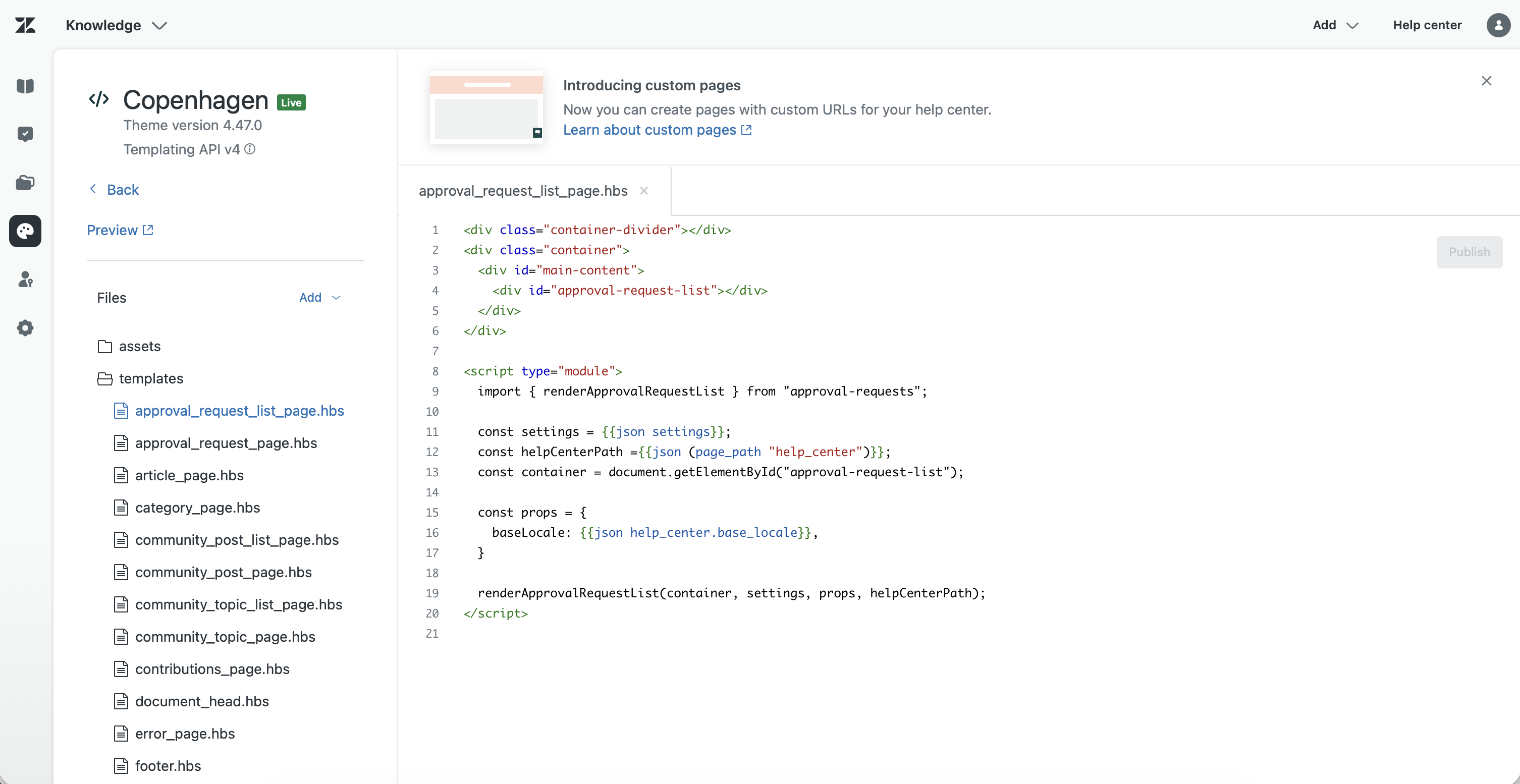
A Guide theme isn’t a color scheme, it’s a package. Inside: the templates (home_page, category_page, article_page, requests_page …) as .hbs files, a global style.css, a global script.js, a folder of assets, plus a manifest.json that defines which controls show up in the editor.
The templates render server-side with Curlybars, a Handlebars subset. That means the HTML structure is built on the server before the page arrives. Anything dynamic, loading something in or reaching the API, runs afterwards through your script.js, which runs globally on every HC page. You have to understand that split, or you’ll hunt for bugs in the wrong place.
Two ways to build it
In the browser: Customize design → Edit code opens the theme editor right inside Zendesk. Fast for small changes. It requires Suite Growth or higher (on the older plans: Guide/Knowledge Professional or Enterprise). Suite Team has no code editor.
Locally: the usual starting point is the open-source standard theme Copenhagen rather than a blank page. It’s a Node project: yarn install pulls the dependencies, yarn start compiles the sources from src/ and styles/ into the shipped style.css and script.js and opens a local preview. The trap: edit the sources, not the generated files, or the next build overwrites your changes. To preview against your instance you log in with yarn zcli login -i. Uploading happens via ZIP import or through a GitHub connection. That’s how you version the theme in Git and keep changes traceable once more than one person builds along.
Settings without code
The underrated part is the manifest.json. Whatever you declare there as a setting can later be changed by someone in the editor without touching the code. The types are fixed: text, list, checkbox, color, file and range. Two file variables are mandatory, logo and favicon; without them Zendesk rejects the theme on import. Good theming means structure in the code, configuration in the settings. Hard-wire every color and you become the bottleneck for every later change.
The price: you own the maintenance too
Once you touch a standard theme in the code, it becomes a custom theme. In the theme manager a </> icon marks that state. That has a flip side: Zendesk feature updates to the standard theme no longer flow in automatically, and there’s no official support for your own theme. A rule for it: never touch the live theme directly. Work on a copy and only go live with it after testing. For a bit of recoloring it isn’t worth it. For anything beyond that, there’s no way around it.
And then it gets interesting
Your own theme isn’t the goal, it’s the canvas. Only once you own the code can you create custom pages: your own .hbs templates under templates/custom_pages/, which allow pages outside the standard structure of home, category and article. That’s where a «My requests» page that shows the real status takes shape, using the logged-in identity from the JWT login. Identity, surface, living data: the theme is the middle piece, and without it the other two don’t come together.
A recolored standard theme looks like you. Your own theme is the one place where you don’t operate Zendesk, you build it.